
Download Button Not Working
Downloading movies or files online is very common, and users expect the download to start immediately after clicking the button. But sometimes, the download button does not work, leaving the page loaded but nothing happens. This can be confusing and frustrating, especially when you are eager to watch a movie or video.
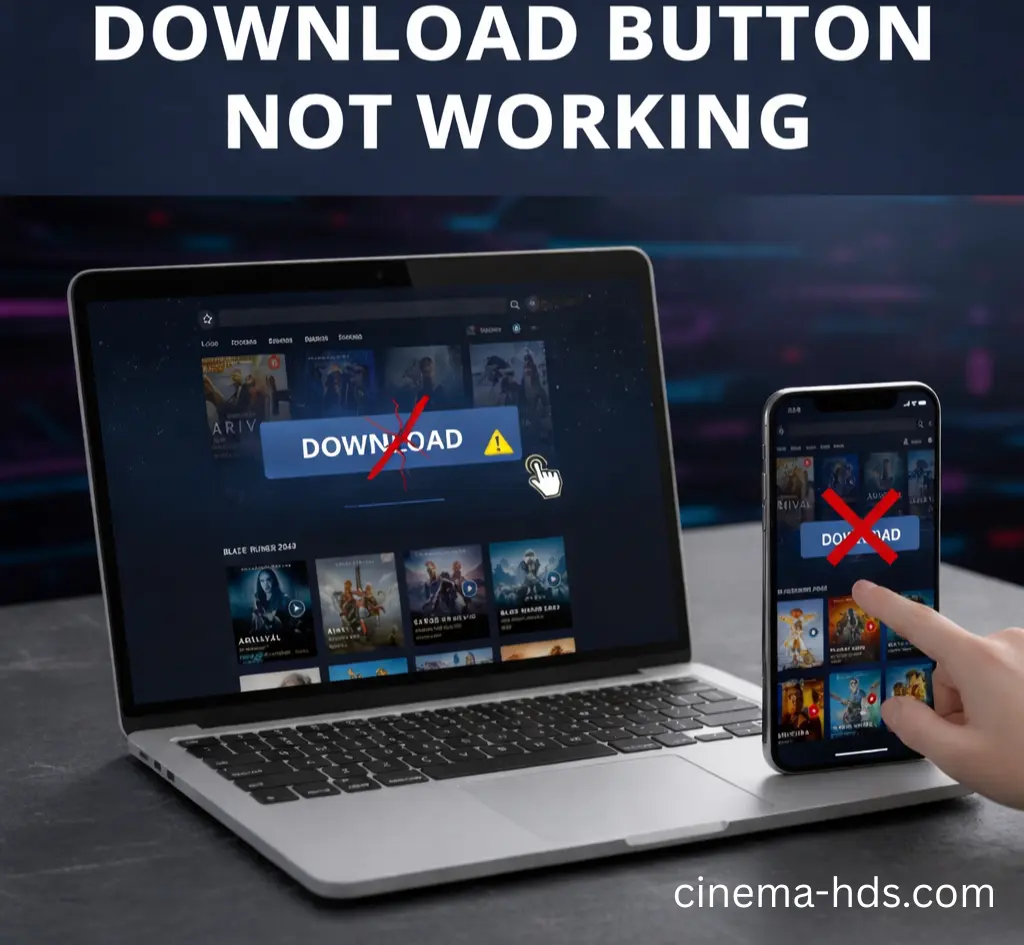
If the download button is not working on CinemaHDS , there is no need to worry. Most issues are related to browser settings, device configurations, or minor technical problems that are easy to fix. In this guide, we explain why this happens and provide step-by-step solutions for both mobile and PC.
Why the Download Button Does Not Work
A download button not working is a common issue that can stop you from getting the file you want. Sometimes the button does nothing when you click it, or it redirects to another page instead of starting the download. This problem usually happens due to browser issues, blocked permissions, ad blockers, or temporary website errors. In this blog, we explain the main reasons why the download button does not work and share easy solutions to help you fix the issue quickly.
How to Fix a Non-Working Download Button
Here’s a step by step guide to solve this problem fast and easily.
Sometimes the Page Is Not Fully Loaded
- Many users click the download button as soon as the page opens. If the page is still loading in the background, the button may not work.
- Large pages with ads, scripts, or multiple elements take extra time to load. If the script behind the button is not loaded yet, clicking it will do nothing.
- Always wait a few seconds after the page fully loads before clicking the download button.
Internet Connection Can Affect the Button
- A slow or unstable internet connection can stop the download button from responding. Even if the page opens, the server may not receive the request correctly.
- If your internet connection drops for a few seconds, the button may stop working.
- Switching to a stable connection or restarting your internet often fixes this issue instantly.
Ad Blockers and Popup Blockers Are Common Causes
Ad blockers and popup blockers sometimes block download buttons by mistake. They think the button is an ad or popup. When this happens, the button stops working.
How to fix it:
Ad blockers are useful, but they often block download scripts by mistake. Many download buttons need popups or redirects to start the download. If an ad blocker is active, the button may look clickable but does nothing.
Try temporarily disabling:
- Ad blockers
- Popup blockers
- Script blockers
After disabling them, refresh the page and click the download button again.
Browser Cache Can Break the Download Button
- Browsers store cache and cookies to load websites faster. Over time, this data can become corrupted and stop scripts from working properly.
- When the cache is outdated, the download button may stop responding.
- Clearing cache and cookies often fixes the problem without any other steps.
Try Using a Different Browser
Some browsers do not support all website download systems. The button may not work because of browser limits. This causes the download action to fail.
How to fix it:
If the download button is not working:
- Try a different browser
- Update your current browser
- Use private or incognito mode
Many users solve this problem instantly by changing the browser.
JavaScript Might Be Disabled
Most download buttons need JavaScript to work. If JavaScript is turned off, the button cannot perform any action. This makes the button useless.
How to fix it:
This often happens when:
- Script-blocking extensions are installed
- Browser security settings are very strict
Make sure JavaScript is enabled in your browser settings.
Device Permissions Can Stop Downloads
If your device does not allow downloads, the button will not respond. The system blocks the download before it starts. This is a common device setting issue.
How to fix it:
Sometimes the download button works, but the file cannot start downloading because the device blocks it.
On mobile devices:
- Storage permission may be disabled
- Browser may not be allowed to save files
On computers:
- Download folder access may be blocked
- Security settings may stop file saving
Allowing proper permissions helps the download button work correctly.
Security Software Can Interfere
Antivirus or firewall software checks every download. Sometimes it blocks the button action to protect the device. This security block can stop the download.
How to fix it:
You can try:
- Temporarily pausing antivirus or firewall
- Adding the site to trusted list
- Clicking the download button again
Always enable security again after downloading.
Page Errors and Broken Scripts
Website errors or missing scripts can break the download button. The button appears on the page but has no working function. Because of this, downloads do not start.
How to fix it:
Sometimes the issue is not on your device. The download button itself may be broken due to:
- Server error
- Broken script
- Expired file
- Incorrect link
In such cases, refreshing the page or using an alternative download option is the best solution.
Try Scrolling or Clicking the Correct Button
Some websites show fake or inactive buttons. Clicking the wrong button will not start a download. This confuses users and makes the download seem broken.
How to fix it:
Make sure:
- You are clicking the correct download button
- The button is not an image or fake link
- The button changes color or shows response when clicked
Choosing the right button avoids confusion.
Mobile Users: Extra Things to Check
Mobile browsers limit background and large downloads. If the app closes or the screen locks, the button may stop working. Mobile restrictions often cause this issue.
How to fix it:
On mobile devices, the system may block downloads automatically.
Make sure:
- Battery saver mode is turned off
- Browser is allowed background activity
- Storage permission is enabled
- The browser is updated
Mobile systems often stop downloads to save power or data.
PC and Laptop Users: Helpful Tips
On computers, browser settings or system blocks can stop the button. Too many running apps can also affect performance. This can make the button unresponsive.
How to fix it:
For PC users, system settings can affect downloads.
Try:
- Restarting your computer
- Running the browser as administrator
- Checking firewall rules
- Making sure downloads are not blocked
Small system issues can stop the download button from working.
Use a Download Manager If Needed
Some websites need a download manager to start downloads. Without it, the button may not work fully. This causes the download to fail.
How to fix it:
If browser download buttons fail repeatedly, a download manager can help. Benefits include:
- Better handling of large files
- Resume broken downloads
- More stable connection
A download manager can bypass browser limitations.
Common Mistakes Users Make
Clicking the button many times or opening many tabs can break the process. This confuses the website system. Because of this, the button stops responding.
How to fix it:
Many users make small mistakes that stop the download button from working. Common mistakes include:
- Clicking the button too many times
- Closing the page too early
- Ignoring browser permission requests
- Using outdated browsers
- Blocking scripts unknowingly
Avoiding these mistakes improves download success.
Safe Downloading Tips
Unsafe or low-quality websites may block download buttons. This is done to protect users from harmful files. Such sites often cause button issues.
How to fix it:
Always download files carefully. Good habits include:
- Using trusted download sources
- Avoiding suspicious redirects
- Keeping browser and system updated
- Scanning files if needed
- Not allowing unnecessary permissions
Safe downloading protects your device and data.
Use Updated and Working Download Options
If the download button is not working, the easiest solution is to use updated and properly tested download options.
Try our working download links that are optimized for smooth downloading on both mobile and PC.
These options reduce errors and save your time.
Final Thoughts
The download button not working issue is very common and usually not serious. In most cases, it happens because of browser settings, ad blockers, cache errors, or device restrictions. By following the steps shared in this guide, you can fix the problem easily. Stay patient, adjust the right settings, and use safe download options to enjoy a smooth downloading experience.
Frequently Asked Questions (FAQs)
This usually happens because the page is not fully loaded, the browser is blocking scripts, or an ad blocker is stopping the download action.
Yes. Ad blockers and popup blockers often block download scripts by mistake. Disabling them temporarily can fix the issue.
Yes. Old or corrupted cache files can stop the download button from working. Clearing cache and cookies often solves the problem.
On mobile devices, storage permission, battery saver mode, or restricted background activity can prevent downloads from starting.
Yes. A download manager is safe to use and often helps start downloads when browser buttons fail, especially for large files.