
“Download Blocked by Browser” means your web browser has stopped a file from downloading because it thinks the file may be unsafe or suspicious. Browsers have built-in security systems that protect your device from harmful files like viruses, malware, or unknown software. If a file comes from an unrecognized source, has an unusual file type, or shows risky behavior during download, the browser may block it automatically. This does not always mean the file is dangerous, but the browser blocks it as a safety measure to protect your computer or mobile device.
Download Blocked by Browser
Many users face the “Download Blocked by Browser” problem when trying to download movies or files from cinema hd. You click the download button, but the browser blocks the file instantly or shows a warning message. Sometimes the download does not even start, which makes users confused and frustrated.
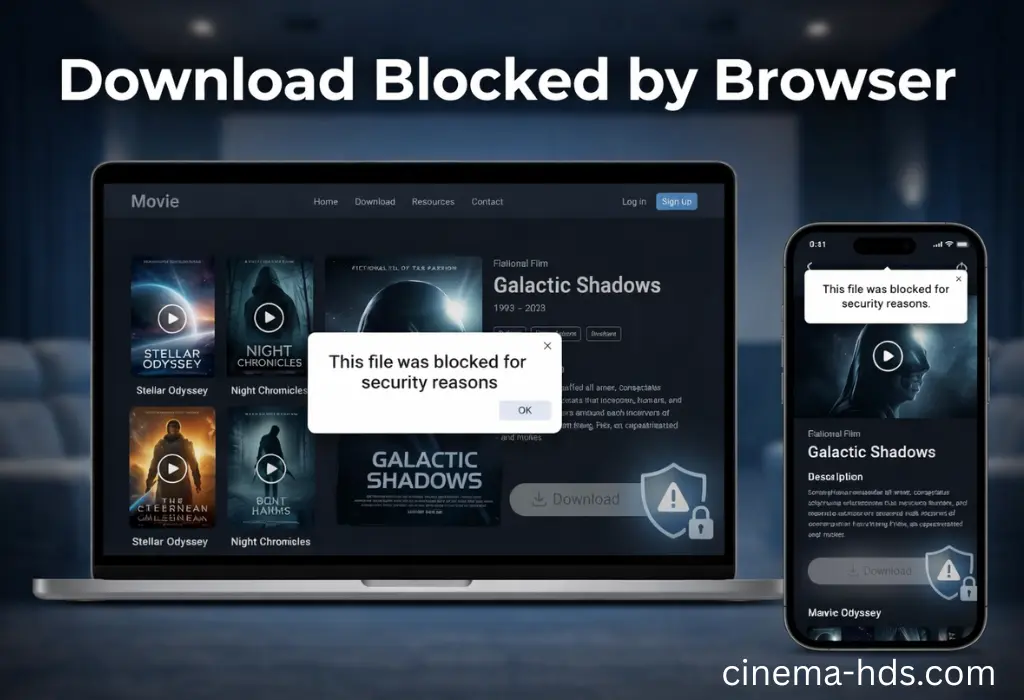
This issue is very common on modern browsers like Chrome, Firefox, Edge, and others. Browsers are built to protect users from harmful files, but sometimes they block safe downloads by mistake. The good news is that this problem is not serious and can be fixed easily with the right steps.
What Does “Download Blocked by Browser” Mean?
How to Fix Download Blocked by Browser
Let’s fix these issues so you can start downloading without any trouble.
Browser Security Protection
Browsers stop downloads to keep your computer safe. Sometimes, even safe movie or file downloads get blocked. This happens because the browser thinks the file may be unsafe.
How to fix it:
- Read the browser warning carefully
- Click “Keep” or “Allow” if it shows
- Check browser security settings
- Refresh the page and try again
- Restart the browser before downloading
Unsafe or Unknown File Type
Browsers block files they do not recognize, like APK, ZIP, or EXE. Even if the file is safe, the browser may stop it.
How to fix it:
- Check the file type before downloading
- Read the browser warning carefully
- Click “Download anyway” if available
- Save the file first, then open it
- Scan the file after download
HTTPS or SSL Security Issue
If the website is not secure, the browser may block the download. SSL errors or “Not Secure” warnings cause this problem.
How to fix it:
- Make sure the website starts with HTTPS
- Update your browser for better security
- Try downloading in private/incognito mode
- Refresh the page and try again
- Make sure internet connection is stable
Multiple Redirects Before Download
Some websites open many pages before the download starts. The browser may block the download because it looks suspicious.
How to fix it:
- Close extra open tabs
- Focus only on the main download page
- Do not click fake buttons
- Wait for the real download link
- Click the download button once
Ad Blocker or Popup Blocker
Some downloads open in pop-up windows. If pop-ups or ad blockers are on, the download may not start.
How to fix it:
- Turn off pop-up blocker temporarily
- Disable ad blocker for the page
- Refresh the page
- Try the download again
- Turn the blockers back on after download
Antivirus or Firewall Interference
Antivirus and firewall programs may block downloads to protect your device. Sometimes safe files are blocked by mistake.
How to fix it:
- Check antivirus alerts carefully
- Allow the file in antivirus or firewall
- Pause protection for a short time
- Download the file
- Turn protection back on after download
Corrupted Browser Cache or Cookies
Old cache or cookies can cause browser problems. This may block downloads again and again.
How to fix it:
- Clear browser cache and cookies
- Restart your browser
- Open the download page again
- Try downloading the file again
- Make sure the browser is updated
Download Blocked Due to Multiple Downloads
Starting many downloads at the same time looks suspicious to the browser. It may block new downloads.
How to fix it:
- Download one file at a time
- Wait until the first download finishes
- Pause other downloads
- Close extra tabs
- Keep the browser active during download
Download Blocked Because of File Size
Big files need more time and internet. If connection is weak, the browser may block the download.
How to fix it:
- Use strong Wi-Fi or data connection
- Avoid switching networks
- Keep the screen on while downloading
- Download during low traffic times
- Use a download manager if needed
Download Blocked by Browser Permissions
If the browser does not have permission to save files, the download will not start.
How to fix it:
- Go to site settings in browser
- Allow download permission
- Enable storage access
- Refresh the page
- Try downloading again
Suspicious Download Behaviour
Clicking too fast or multiple times looks suspicious. Browser may block the download.
How to fix it:
- Click download only once
- Wait patiently for the download to start
- Do not refresh the page repeatedly
- Avoid starting multiple downloads at the same time
- Let the download finish completely
Pop-Up Restrictions Block Download
Downloads that open in pop-up windows may fail if pop-ups are blocked.
How to fix it:
- Allow pop-ups for the site
- Refresh the page
- Start download again
- Close extra tabs
- Turn popup blocker back on after download
Background Extensions Interfere with Download
Some browser extensions like ad blockers or security tools can stop downloads.
How to fix it:
- Turn off unnecessary extensions
- Restart the browser
- Try downloading again
- Enable extensions after download
- Use browser’s default settings if needed
Outdated Browser Causes Download Blocking
Old browsers have bugs and outdated security rules. This can block downloads.
How to fix it:
- Update the browser to the latest version
- Restart the browser after updating
- Clear cache if needed
- Try downloading again
- Use a modern browser
System Security Settings Block Download
Device settings may block downloads to protect your system. This happens on Windows, Android, and other devices.
How to fix it:
- Check system security settings
- Allow browser to save files
- Enable storage permission
- Retry download
- Restart the device if needed
Stable Internet Connection is Required
Weak or unstable internet breaks downloads. Browser may block files that cannot download completely.
How to fix it:
- Use strong Wi-Fi or mobile data
- Avoid network switching during download
- Keep the device screen on
- Pause other internet activities
- Download during off-peak times
Final Thoughts
The “Download Blocked by Browser” issue usually happens because browsers try to protect users from unsafe files and security risks. Sometimes the file may actually be safe, but the browser blocks it due to strict security settings, unknown file types, extensions, or other technical issues. By checking browser settings, clearing cache, disabling unnecessary extensions, and making sure the internet connection is stable, most download problems can be fixed easily. Understanding these common causes and solutions helps users download files smoothly without facing repeated browser blocking errors.
Frequently Asked Questions (FAQs)
Why is my download blocked by my browser?
Browsers block downloads to protect your device from harmful files. If a file looks unsafe, unknown, or suspicious, the browser may stop it automatically. This security feature helps keep your system safe from viruses or malware.
How can I unblock a download in my browser?
When a download is blocked, the browser usually shows a warning message. You can click options like “Keep”, “Allow”, or “Download anyway.” After that, the download should start normally.
Why does Chrome show “Download Failed – Blocked”?
This error appears when Chrome thinks the file may be unsafe. It can happen because of security settings, unknown file types, or antivirus protection. Sometimes browser extensions can also cause this problem.
Can antivirus or firewall block downloads?
Yes, antivirus and firewall programs can block downloads if they think the file may harm your device. In some cases, even safe files can be blocked by mistake.
How can I fix the “Download Blocked by Browser” error?
You can fix this problem by checking browser security settings, clearing cache and cookies, disabling extensions, and making sure your internet connection is stable. Restarting the browser can also help solve the issue.